Upload a file
Upload files into any folder you can write to. You can also drag files straight from your desktop.
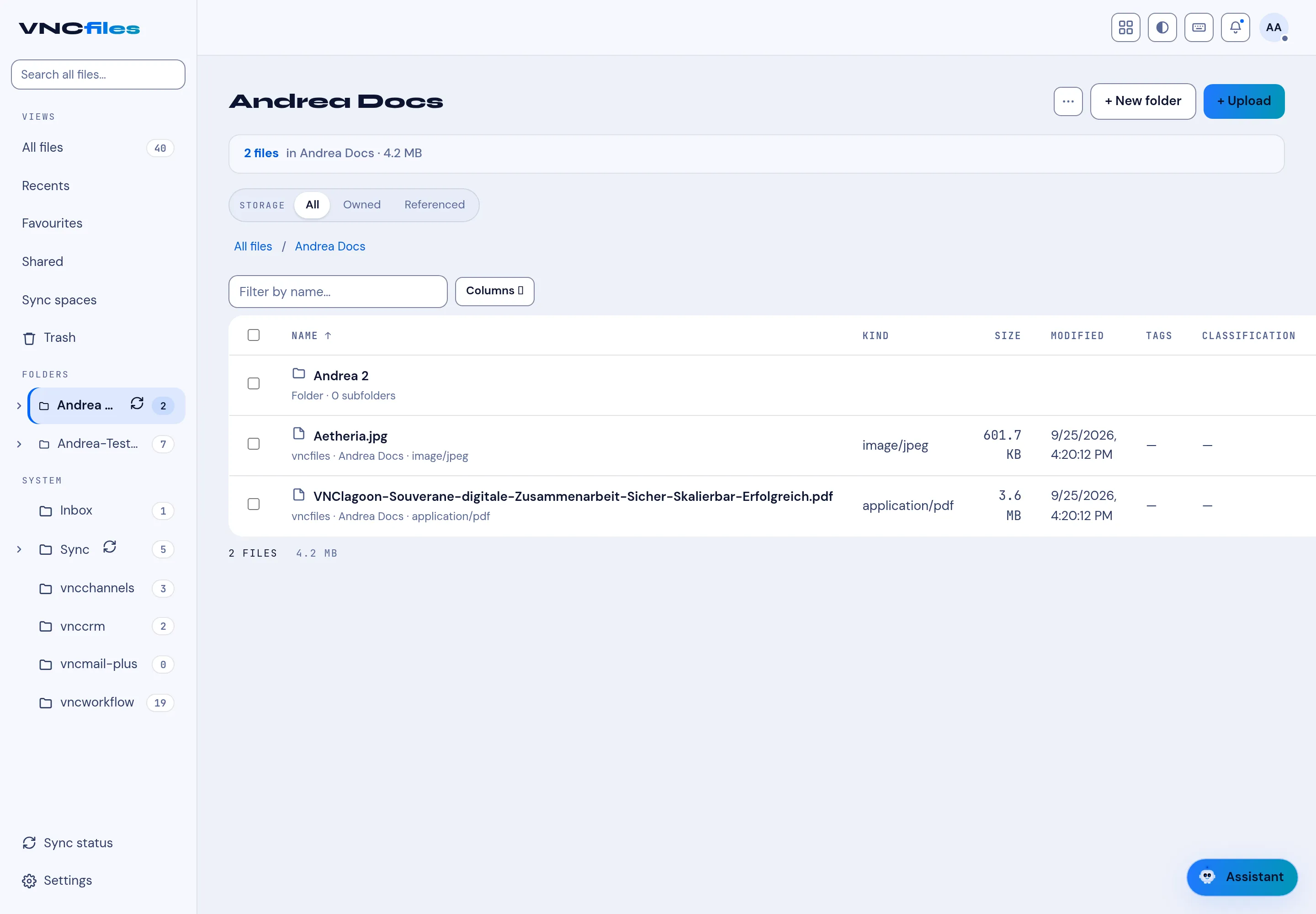
- Open Files and open the folder you want (for example Andrea Docs). The breadcrumb shows where you are.
- Select + Upload, or drag files onto the page.
- Choose the files in the picker. They upload straight into the open folder.
- Use + New folder if you need a new destination first.
Result
Section titled “Result”The files appear in the list with their Kind, Size, Modified, Tags and Classification. The header shows the folder’s total, for example 2 files · 4.2 MB. Use the Storage filter (All / Owned / Referenced) to change what is listed, and Filter by name or Columns to narrow it.
What VNCfiles reads from the file
Section titled “What VNCfiles reads from the file”On upload, VNCfiles extracts the file’s text so search and the assistant can find it by its contents, not only its name:
- Documents — text, Markdown, CSV, JSON, PDF and Word files yield their text.
- Scanned PDFs and images — OCR turns the picture into text, so a scanned page or a photo is findable by the words in it.
Extraction is best-effort: a file that cannot be read simply stays findable by its name, and an upload never fails because of it. Files in an end-to-end-encrypted folder are not read — the server holds only ciphertext.