Read a request and its history
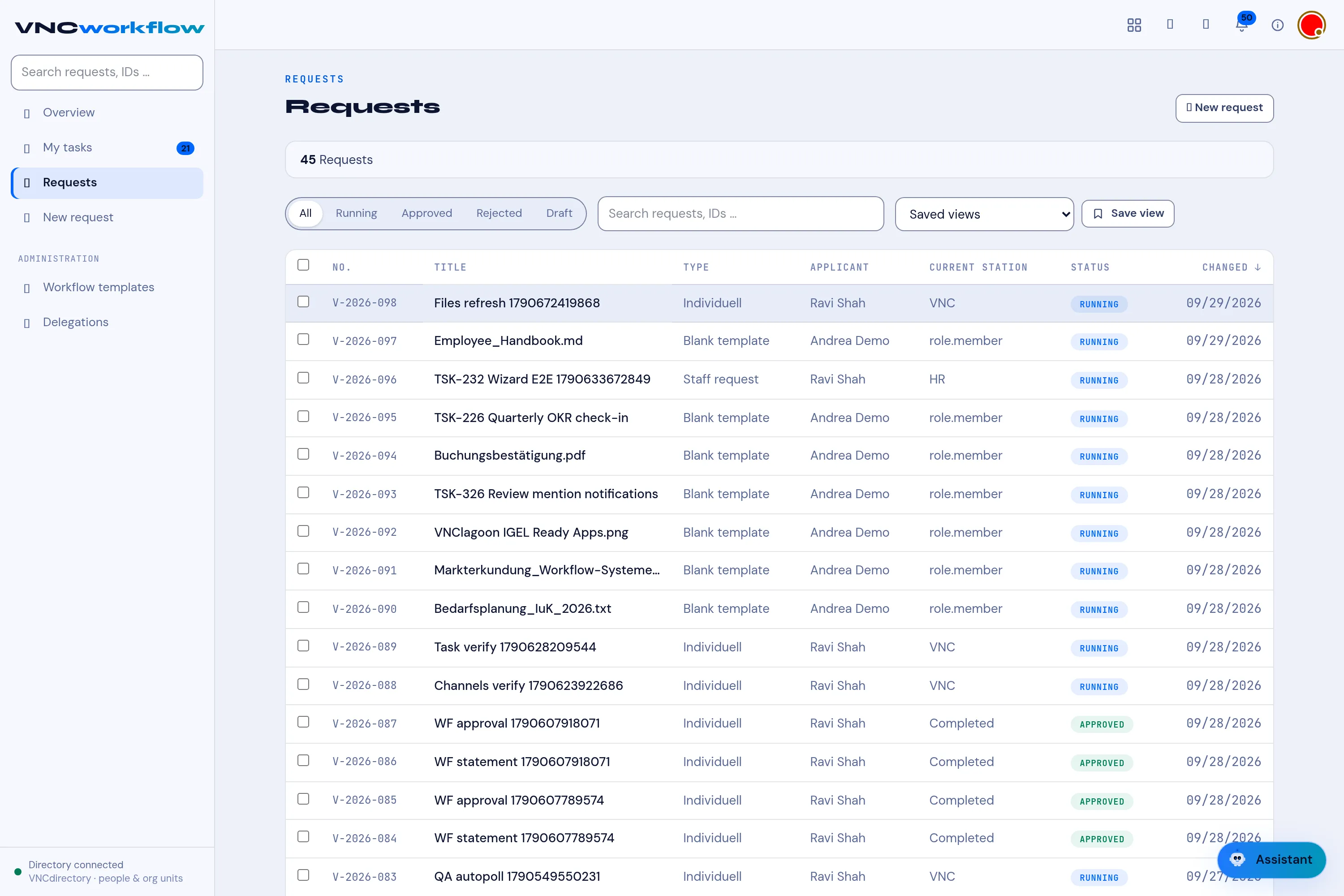
Open a request from Requests to see where it is, what it contains and who decided what.
- Open Requests and select a request. Back returns to the list.
- Read the header: the ID (
V-2026-xxx), the process type, who submitted it, and the status badge. - Follow the station bar under the header — each station a request passes, with the responsible person.
- Read the Request text and the Request attachments.
- In Stations & history on the right, read each station: its status (ACTIVE / OPEN), the Role, the person, any Condition, and the History with the decision.
- Add a Comment and select Send to leave a note, or Audit trail PDF to export the full history.
Result
Section titled “Result”When every station has approved, the request is finally approved and all participants are notified. Only the applicant, the involved stations and administrators may act on it.